View the full step-by-step guide here.
Setup/Edit Passkey
This guide walks you through how to add or update a passkey for your iSolved account for faster, more secure logins.
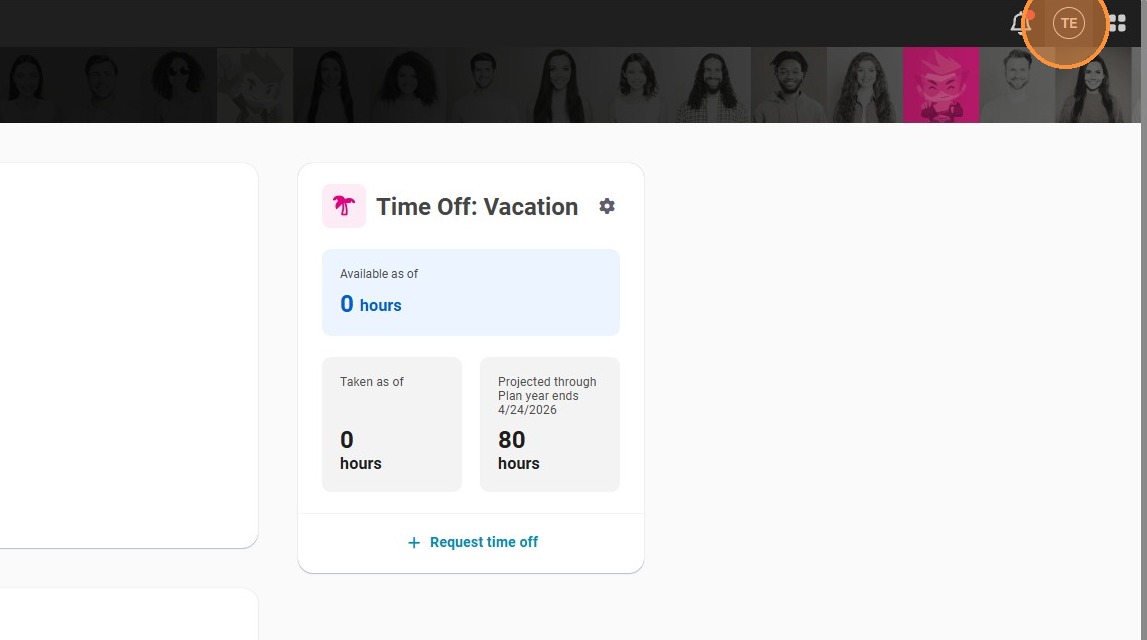
Step 1. Click the Profile Icon in the top right corner.
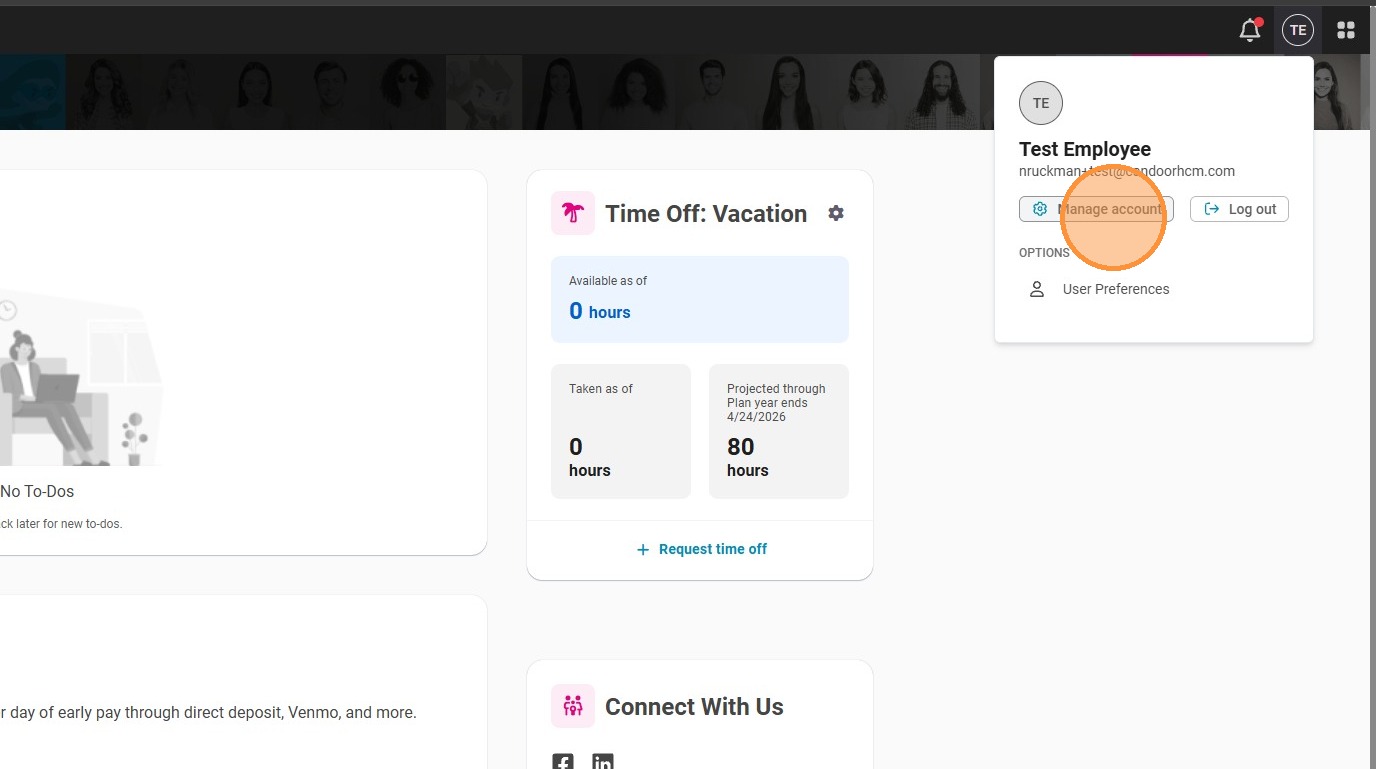
Step 2. Select Manage Account.
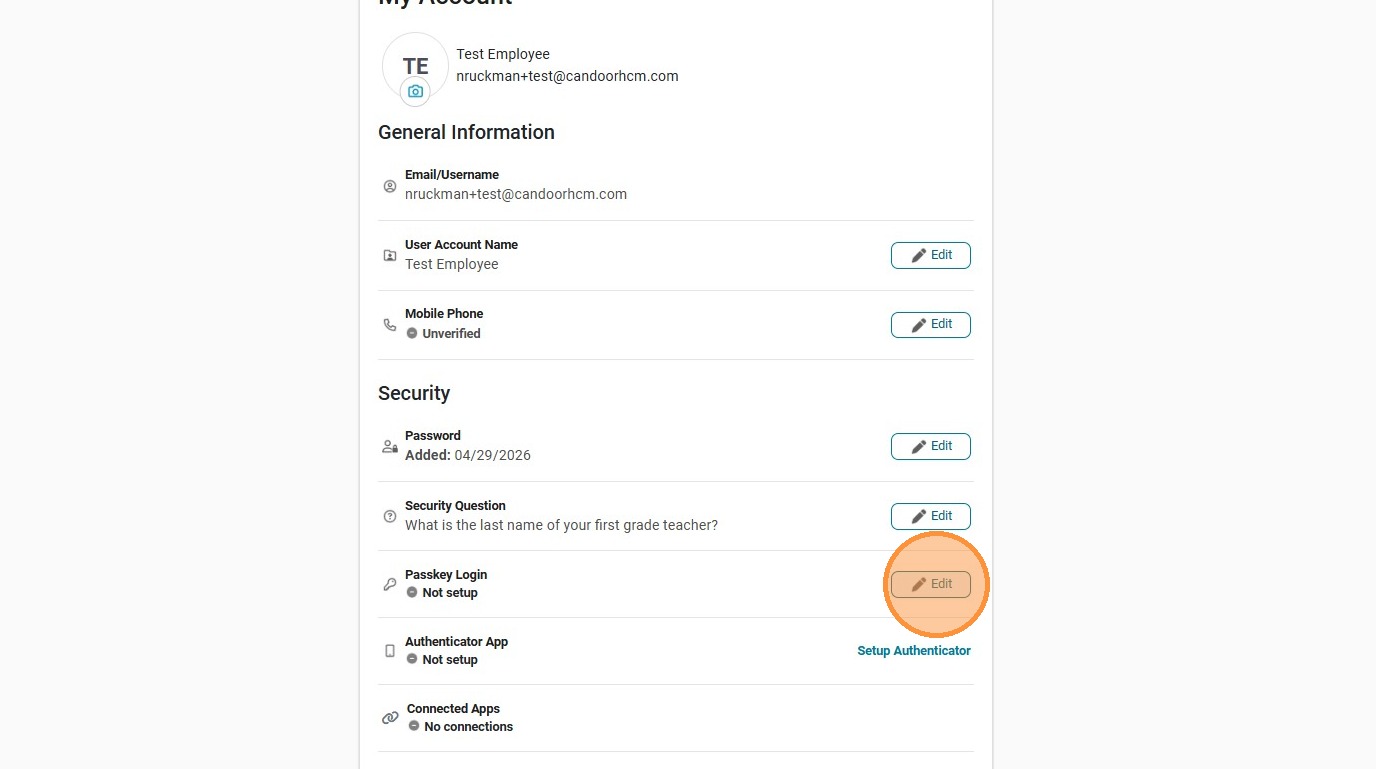
Step 3. Click Edit next to Passkey Login.
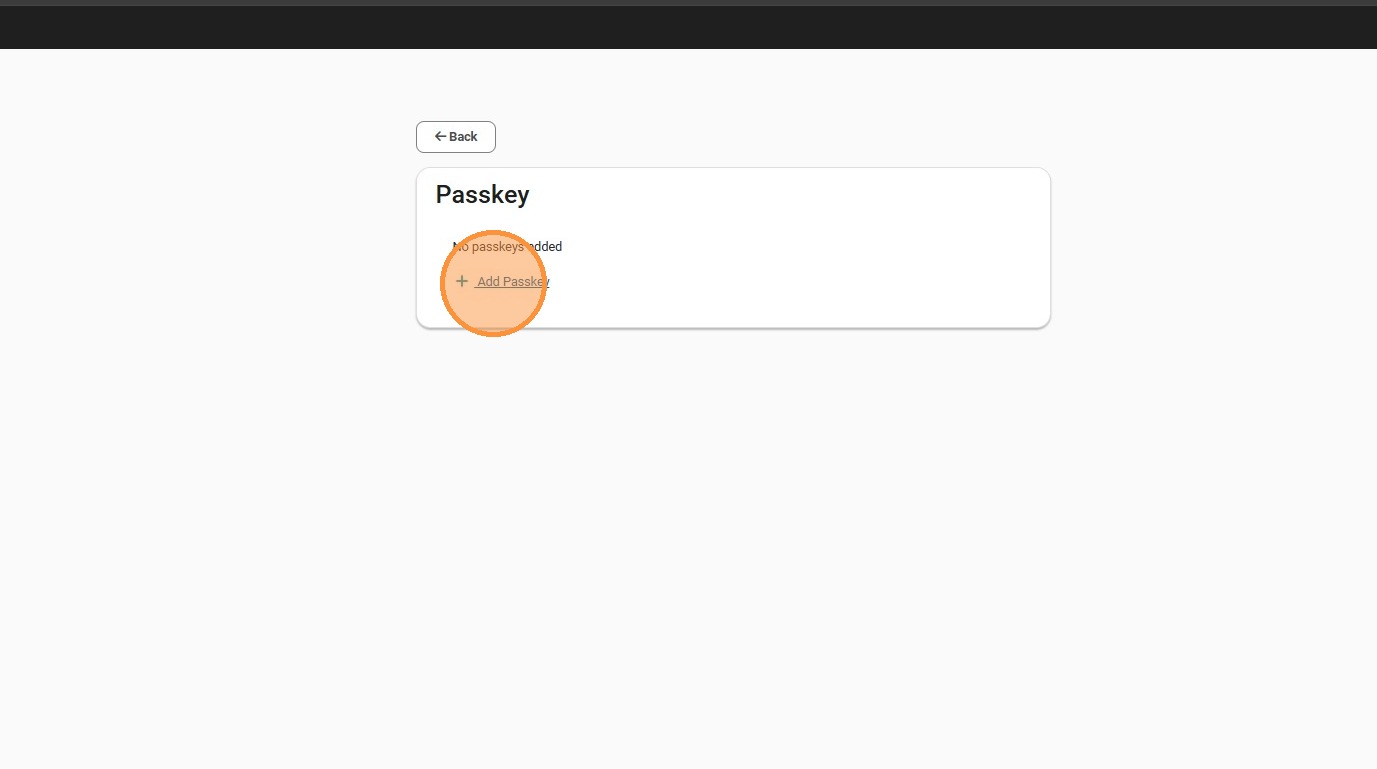
Step 4. Click Add Passkey.

Step 5. Enter a name for the Passkey and click Continue.
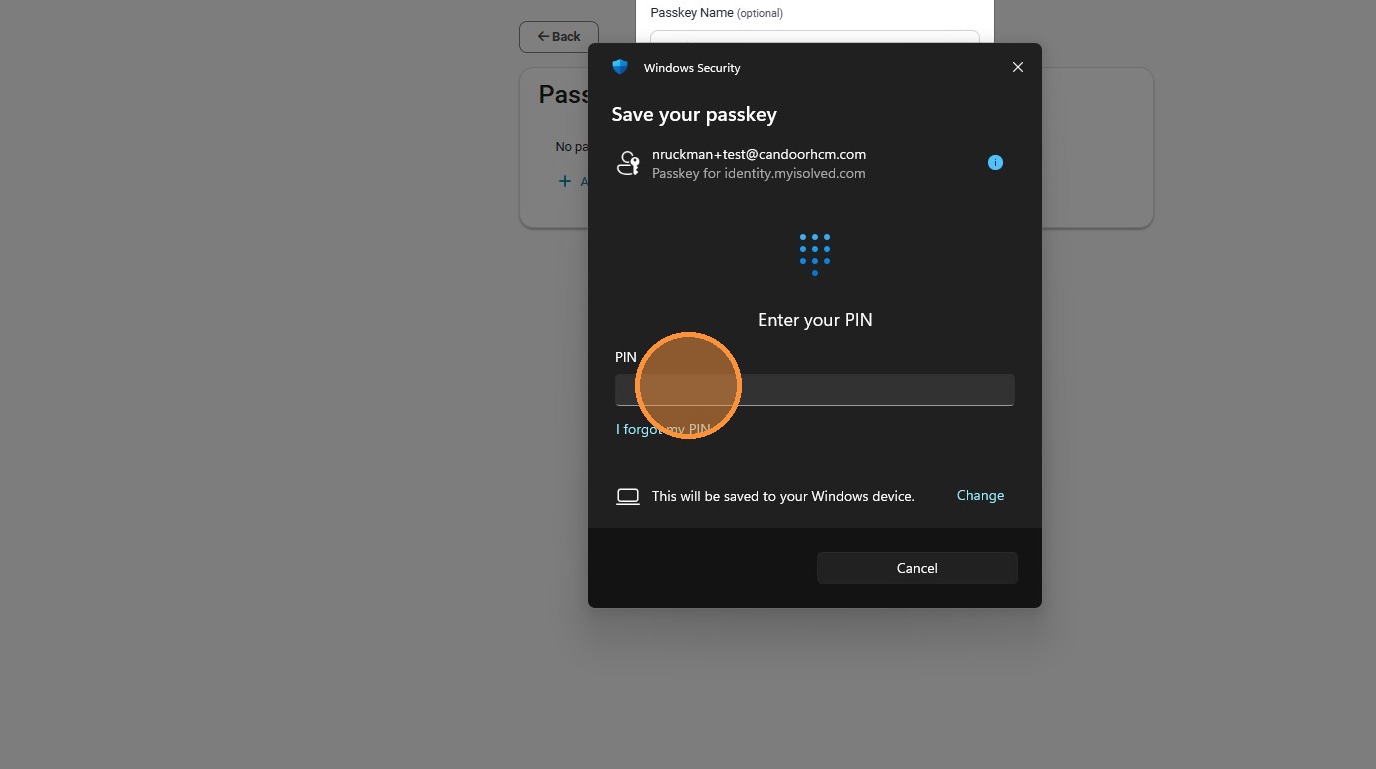
Step 6. Enter your Device Password (this is the password you use to log in to your computer).
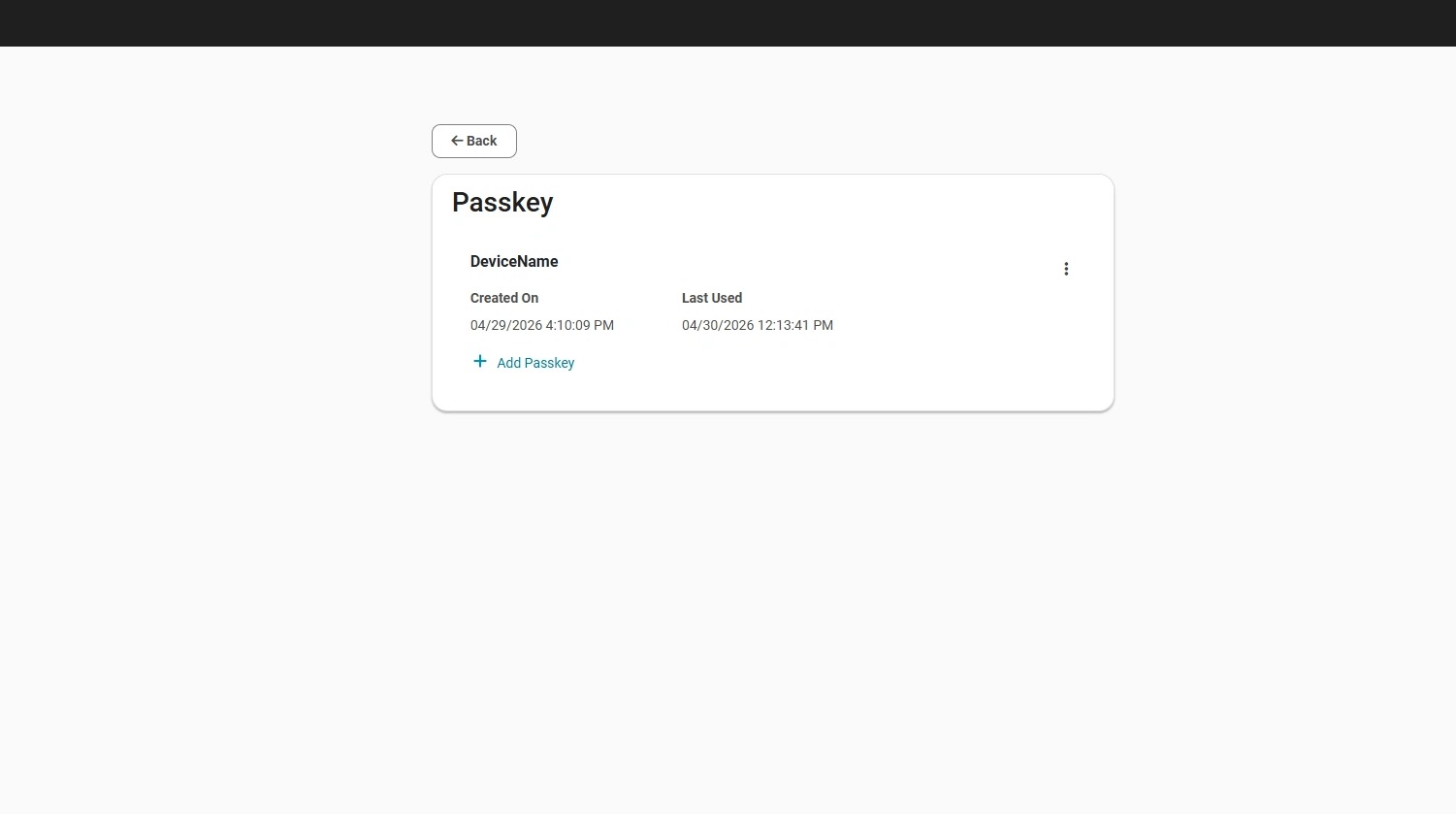
Step 7. Once saved, your passkey will display the device name, the date it was created, and when it was last used.