View the full step-by-step guide here.
Navigate to Adaptive View from Classic View
This guide shows you how to switch from Classic View to the Adaptive Employee Workspace in iSolved.
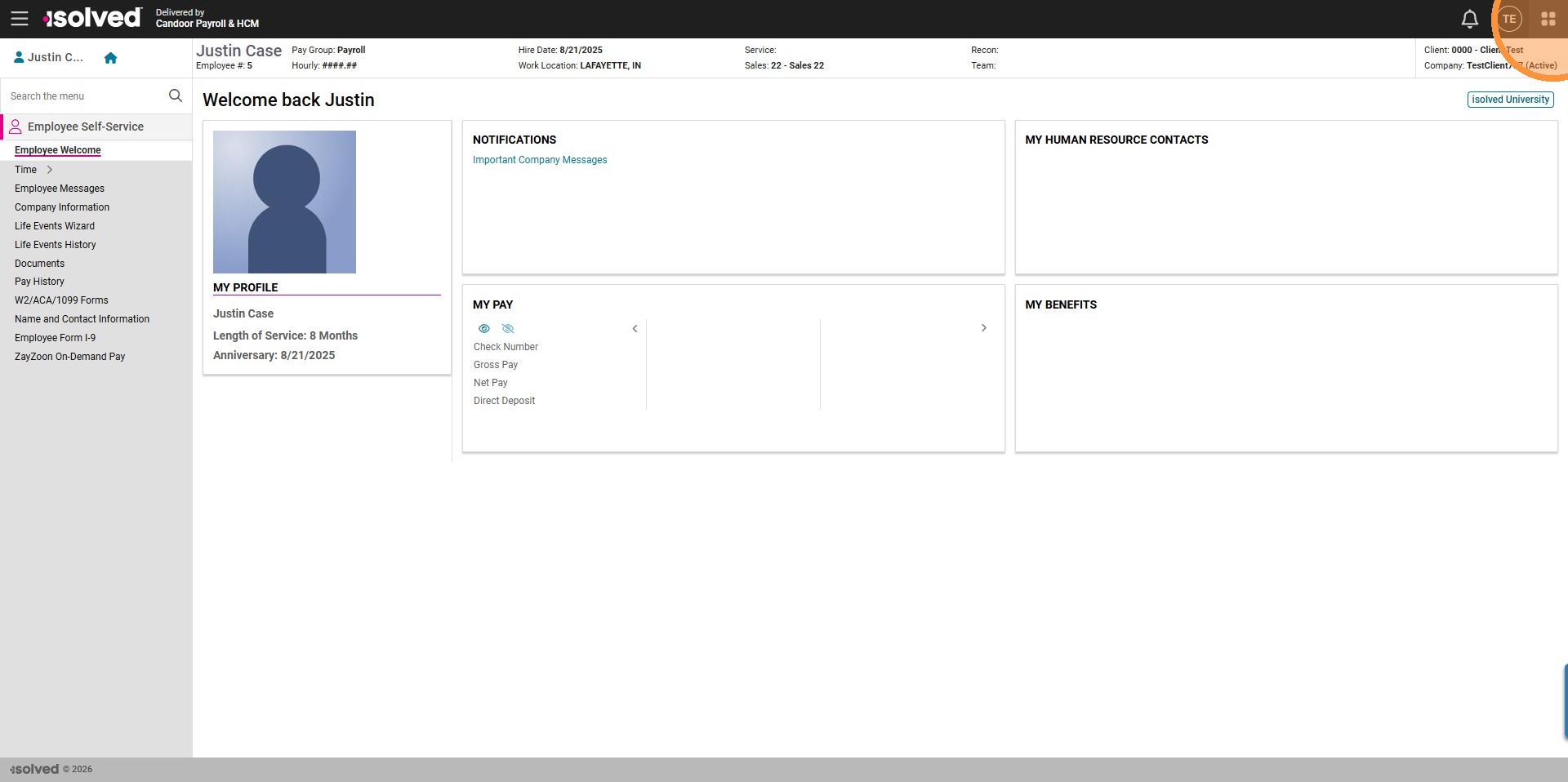
Step 1. Click the App Launcher icon.
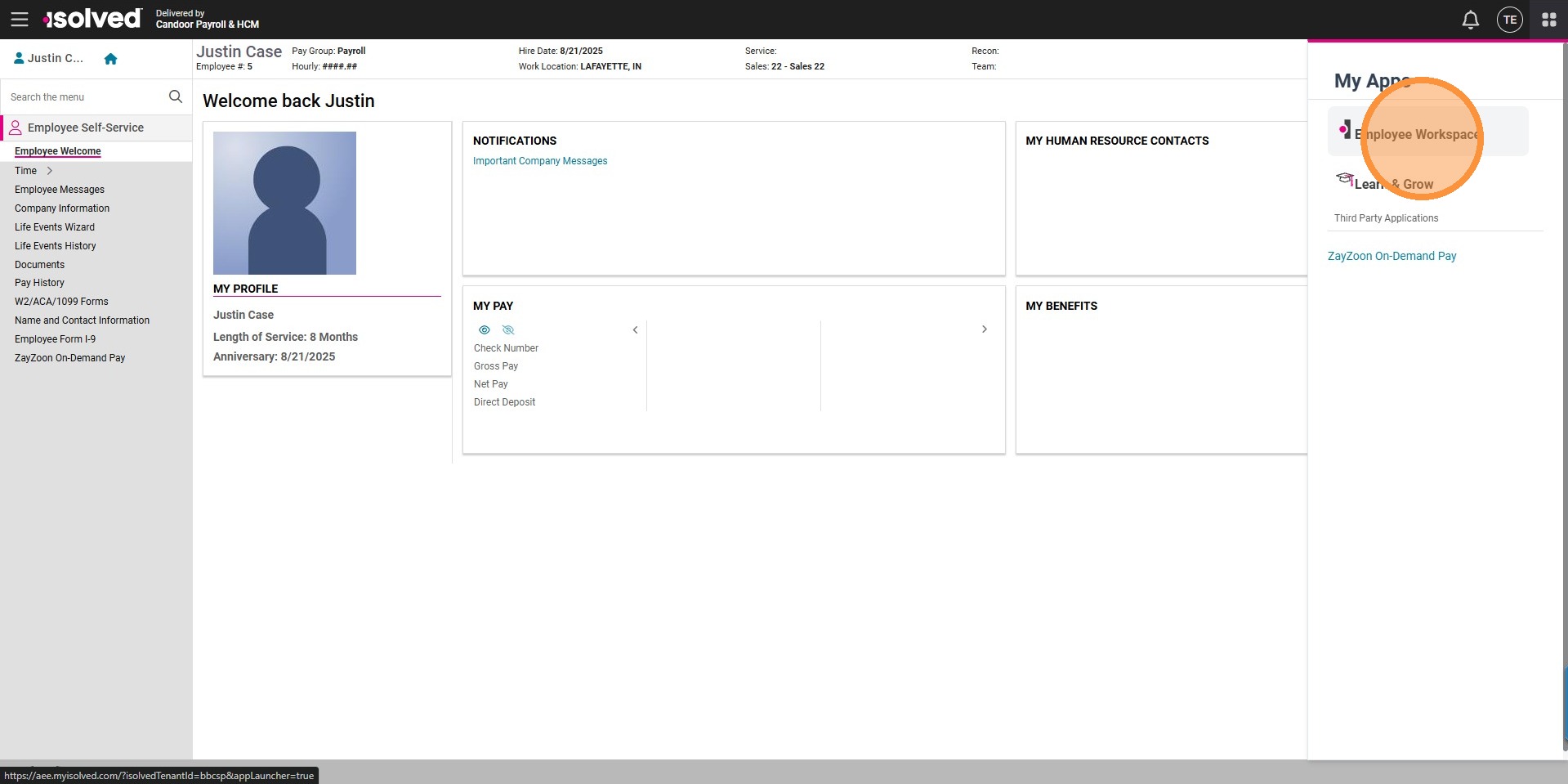
Step 2. Select Employee Workspace.
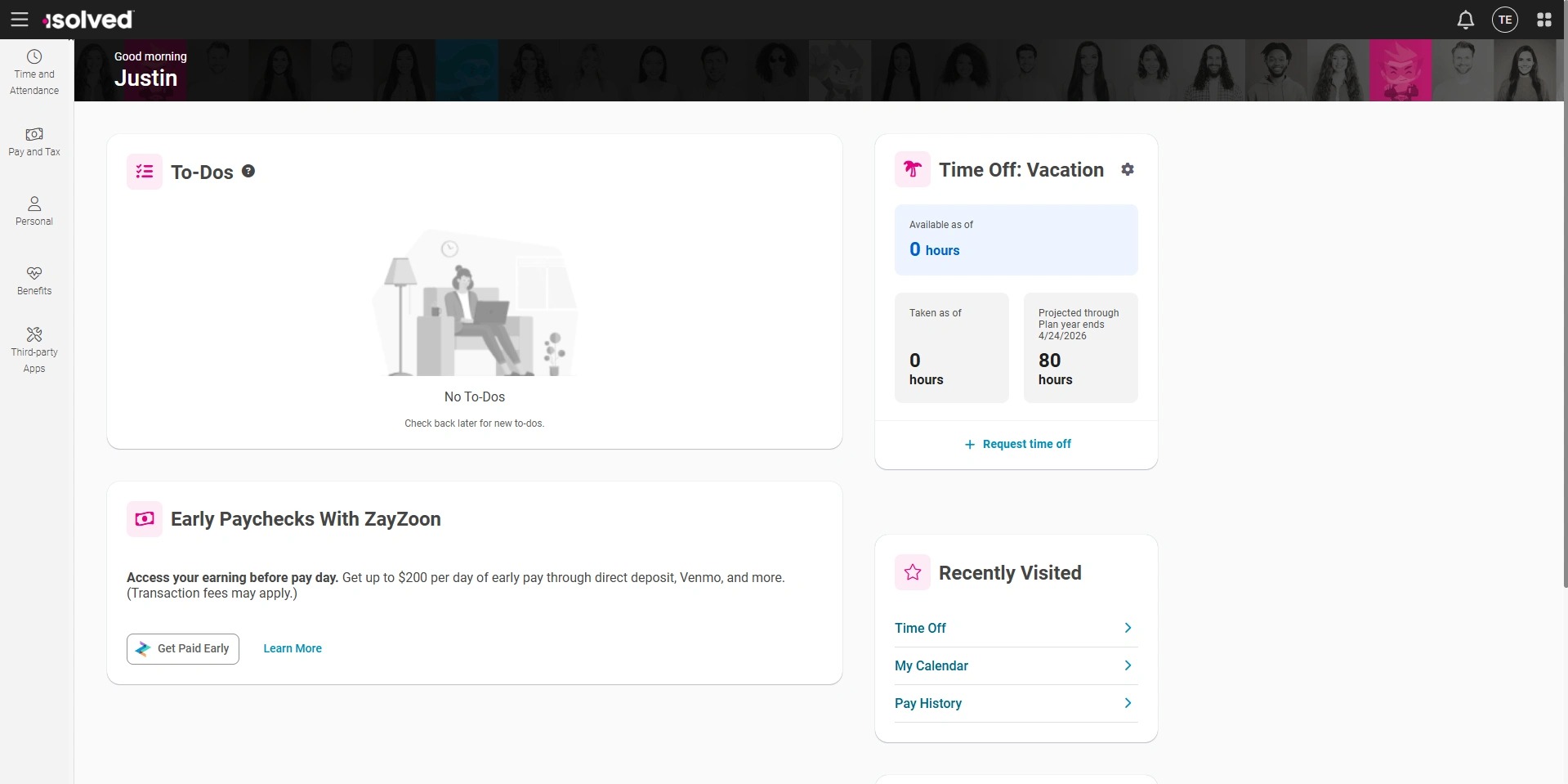
Step 3. You are now in the Employee Workspace.